
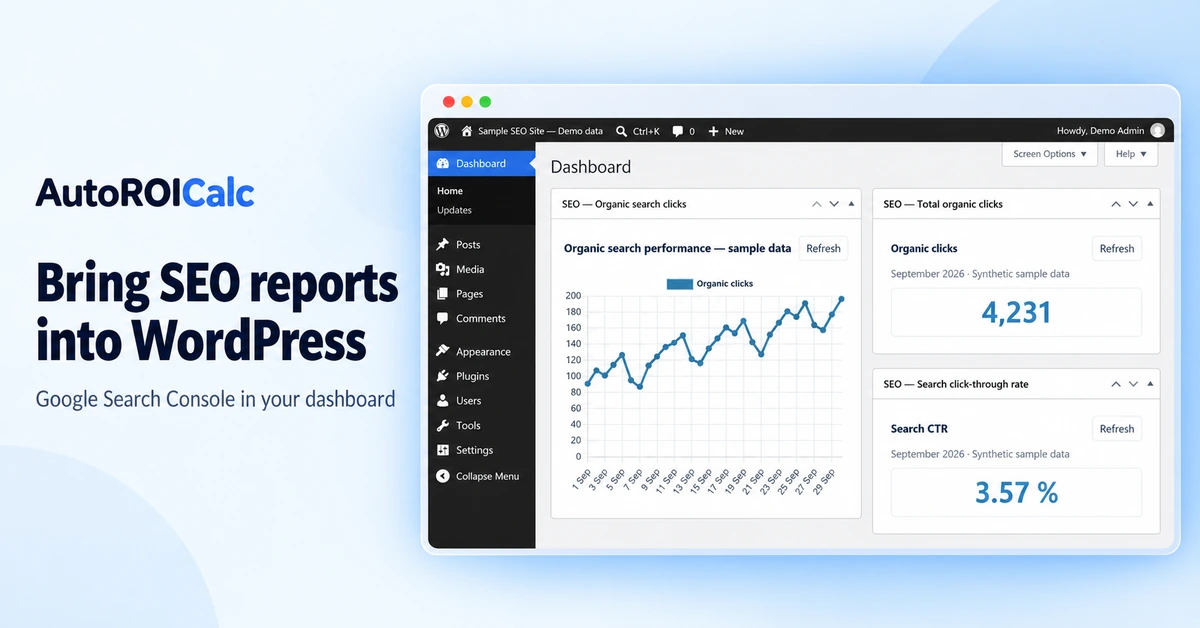
You already open WordPress to publish content, update pages, and manage your website. Why not check your SEO results there too?
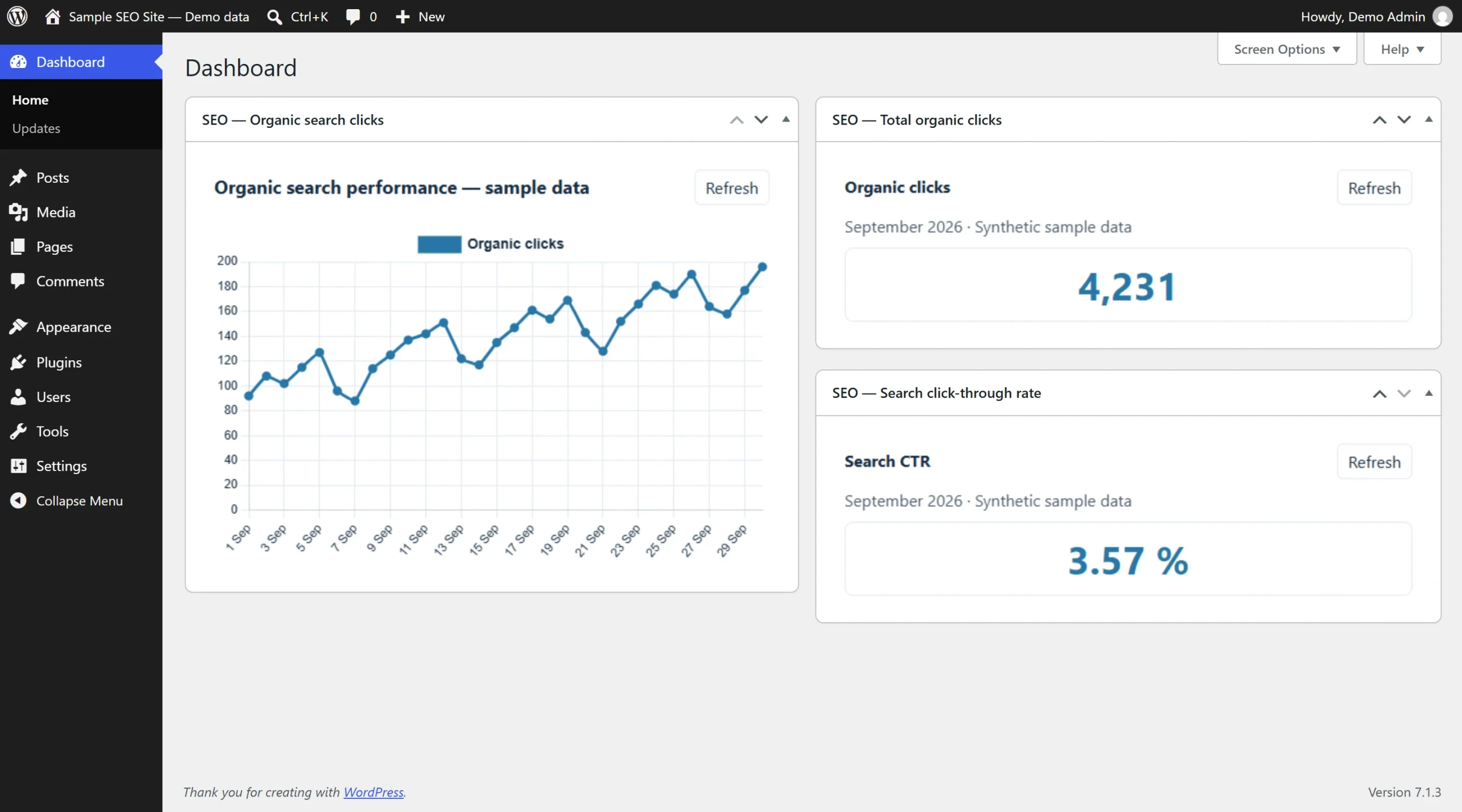
With AutoROICalc Event Tracking, you can display SEO report widgets directly in the WordPress administration dashboard. Bring a Google Search Console clicks chart or a headline KPI into the place where you manage your content.
Start with the Google Search Console One-Click Solution
The Google Search Console One-Click Solution gives you a starting point for importing search performance data and creating reusable SEO reports and dashboards.
Connect your Google Search Console account, select your website, and follow the solution setup. Review the created reports and import schedule, and use the optional historical import if you want earlier data.
Once your SEO report is ready in AutoROICalc, you can select it in WordPress.
Add the SEO report to your WordPress dashboard
- Install and activate AutoROICalc Event Tracking. Connect your account using the guided setup under Settings → Events Tracking → Setup.
- In AutoROICalc, open your SEO report, select API Widget from its sharing menu, and enable Authenticated backend access. Save the setting.
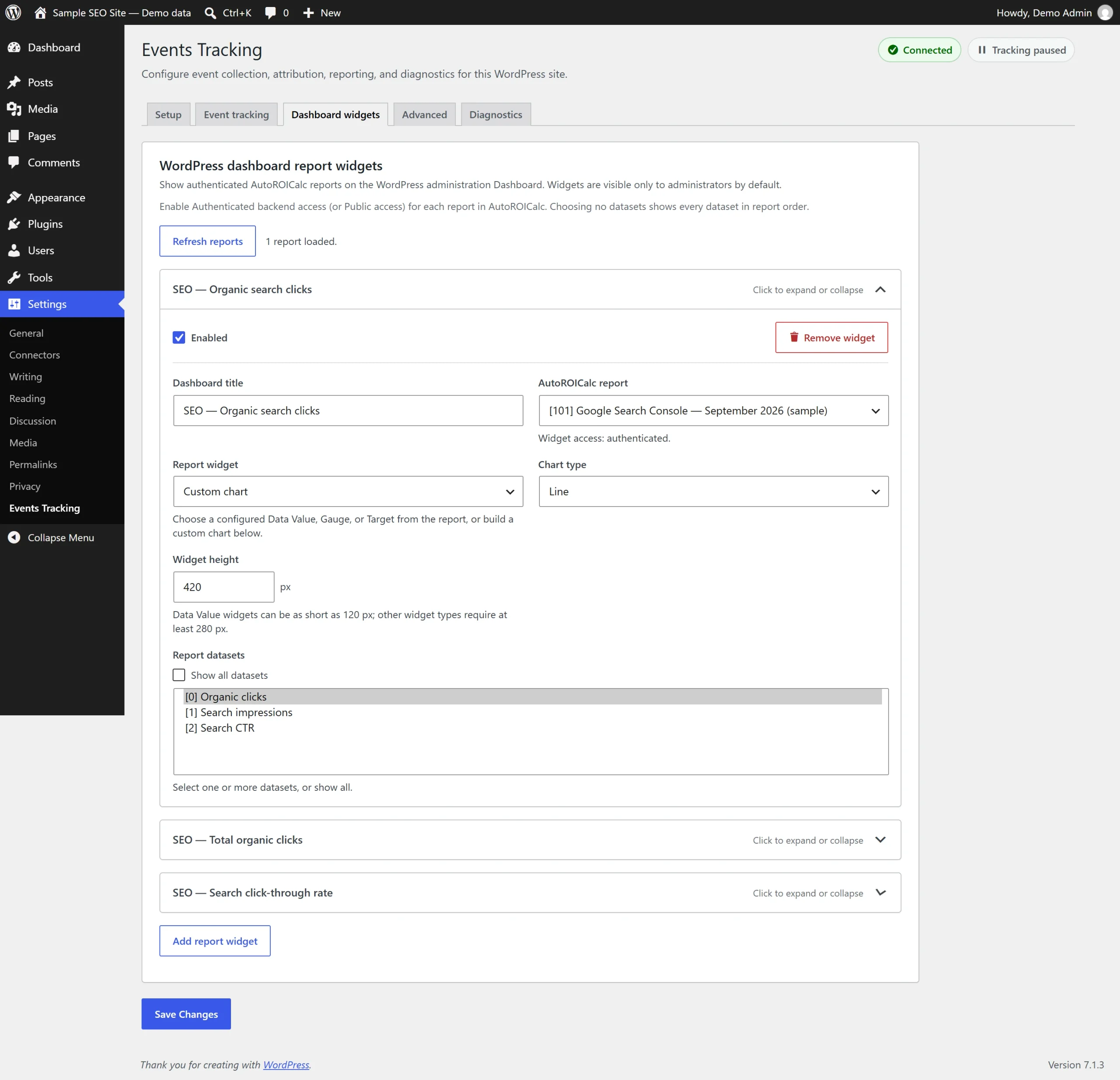
- Back in WordPress, open Settings → Events Tracking → Dashboard widgets and select Add report widget.
- Choose your report. Select a saved KPI widget, or choose Custom chart, a chart type, and the datasets you want to display.
- Set a clear dashboard title and widget height, save your changes, and open the WordPress Dashboard.
Keep a few useful SEO metrics close at hand
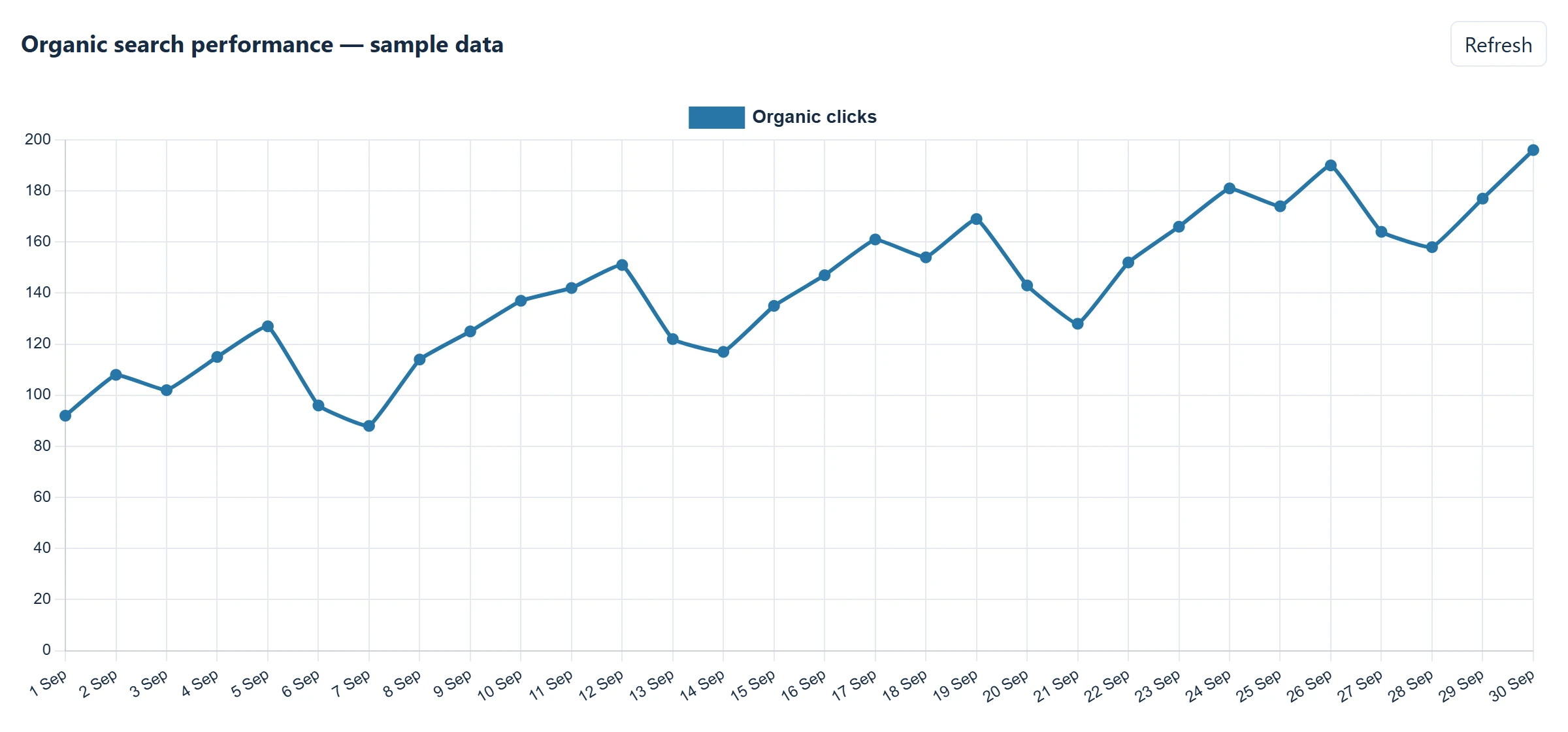
Start with a daily organic-clicks chart and one or two headline values. Our sample month contains 4,231 clicks from 118,468 impressions, giving a 3.57% search CTR. These figures are illustrative, not customer results.
This keeps SEO performance visible during content reviews and reduces repeated exports or screenshots. You can return to the full AutoROICalc report when you need more detail.
The same plugin can track on-site interactions
AutoROICalc Event Tracking can also record selected button clicks, form submissions, and registrations for separate reporting. Search Console provides search performance data; configured website events provide another view of activity on your site. Dashboard report widgets remain available while event tracking is paused.
Frequently asked questions
Does my SEO report need to be public?
No. The plugin retrieves the report through its server-side connection. Dashboard widgets are visible to administrators by default, and your service token stays on the server.
How fresh is the data?
Freshness depends on your Search Console import schedule and the data available in AutoROICalc. The widget’s Refresh button requests a fresh report calculation; it does not start a new Search Console import.
Start with one SEO report and make checking it part of your WordPress routine. Explore the One-Click Solutions or follow the dashboard widget setup guide.