
Google Search Console tells you which queries and pages bring your site into search results. The challenge is turning that data into a report you can review every week without rebuilding it by hand. Search Console automation can handle the repeated collection and presentation of that data, leaving you to interpret the changes and decide what to do next.
This guide shows how to set up that reporting workflow in AutoROICalc with the Google Search Console One-Click Solution. You need a Google account with access to a verified Search Console property.
What this workflow automates
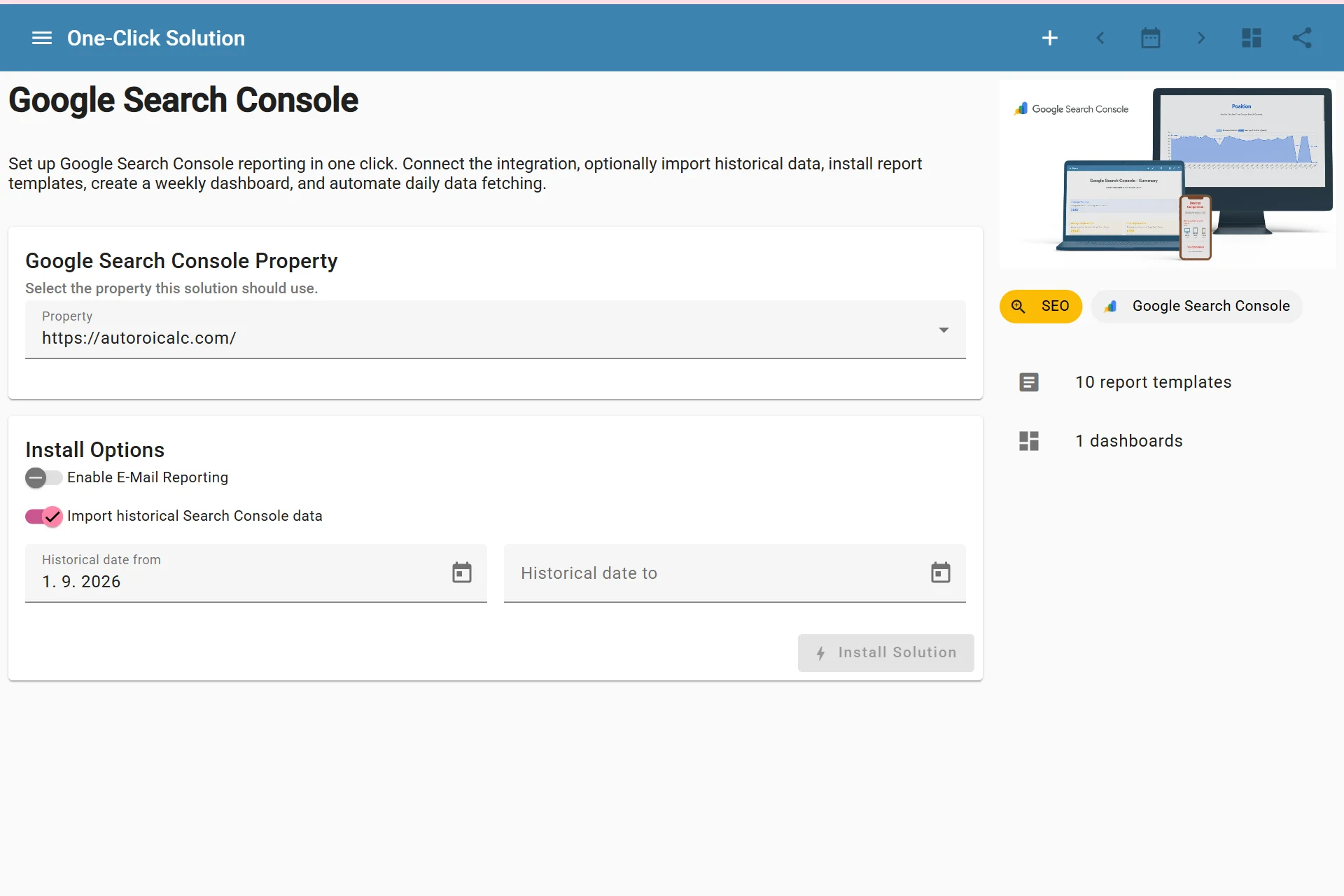
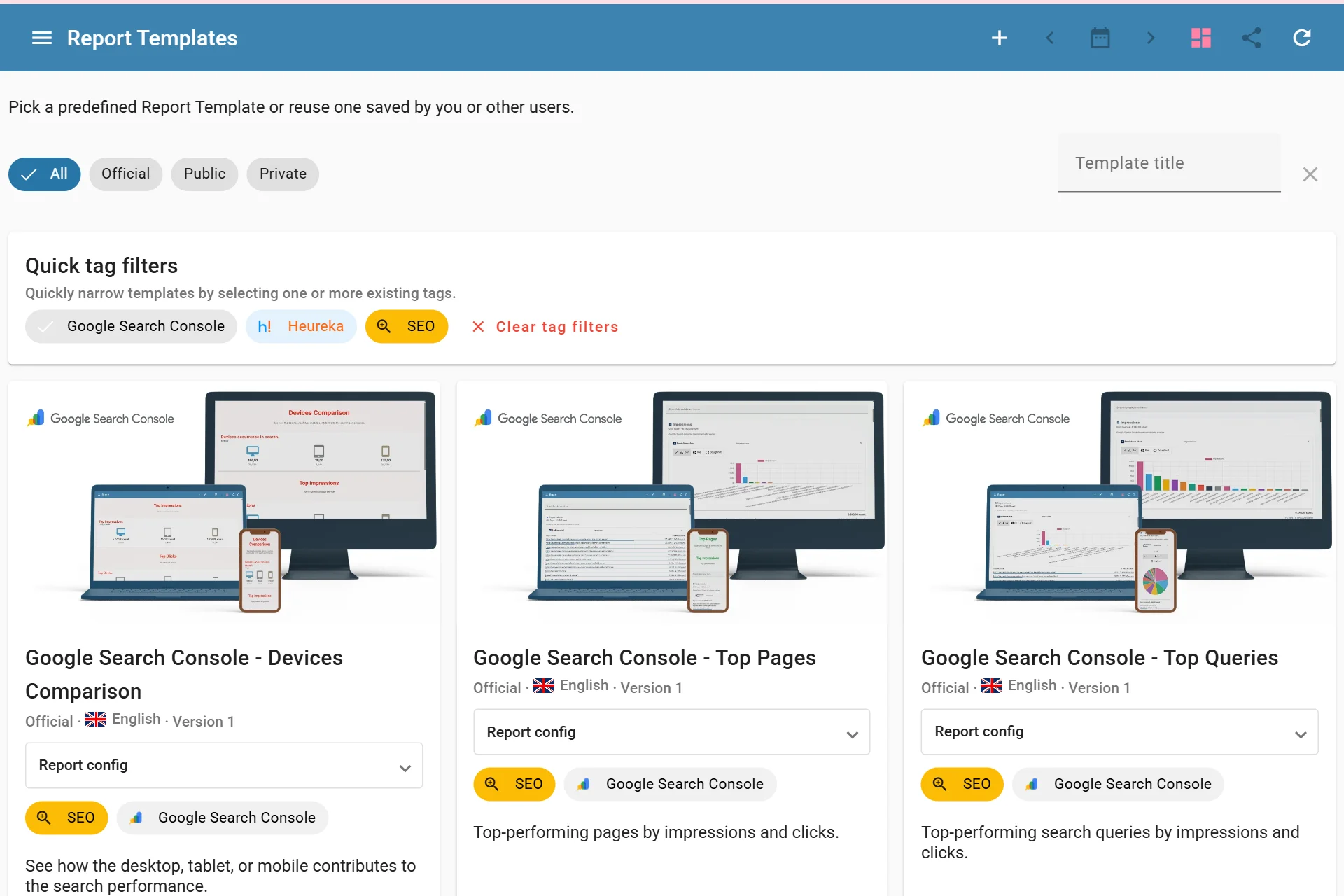
The One-Click Solution connects a Search Console property to AutoROICalc, creates a scheduled data import, adds prepared SEO reports, and assembles a dashboard. During setup, you can also choose a historical data import and optional email reporting. The solution gives you a working starting point; you can adjust its reports, layout, and schedule afterward.
The imported data can cover clicks, impressions, click-through rate, average position, and breakdowns such as queries, pages, countries, and devices. Search Console reports describe search performance. They do not make indexing or ranking changes for you.
Set up Search Console reporting
- In AutoROICalc, open Integrations and connect Google Search Console. Complete Google’s authorization using an account that can access the property you want to report on.
- Open One-Click Solutions and choose the Google Search Console reporting solution. Review the solution summary before installing it.
- Select the website property. If you want the initial reports to include earlier performance, choose the optional historical import and its date range.
- Decide whether to enable email reporting. Check the recipients and delivery settings before turning it on.
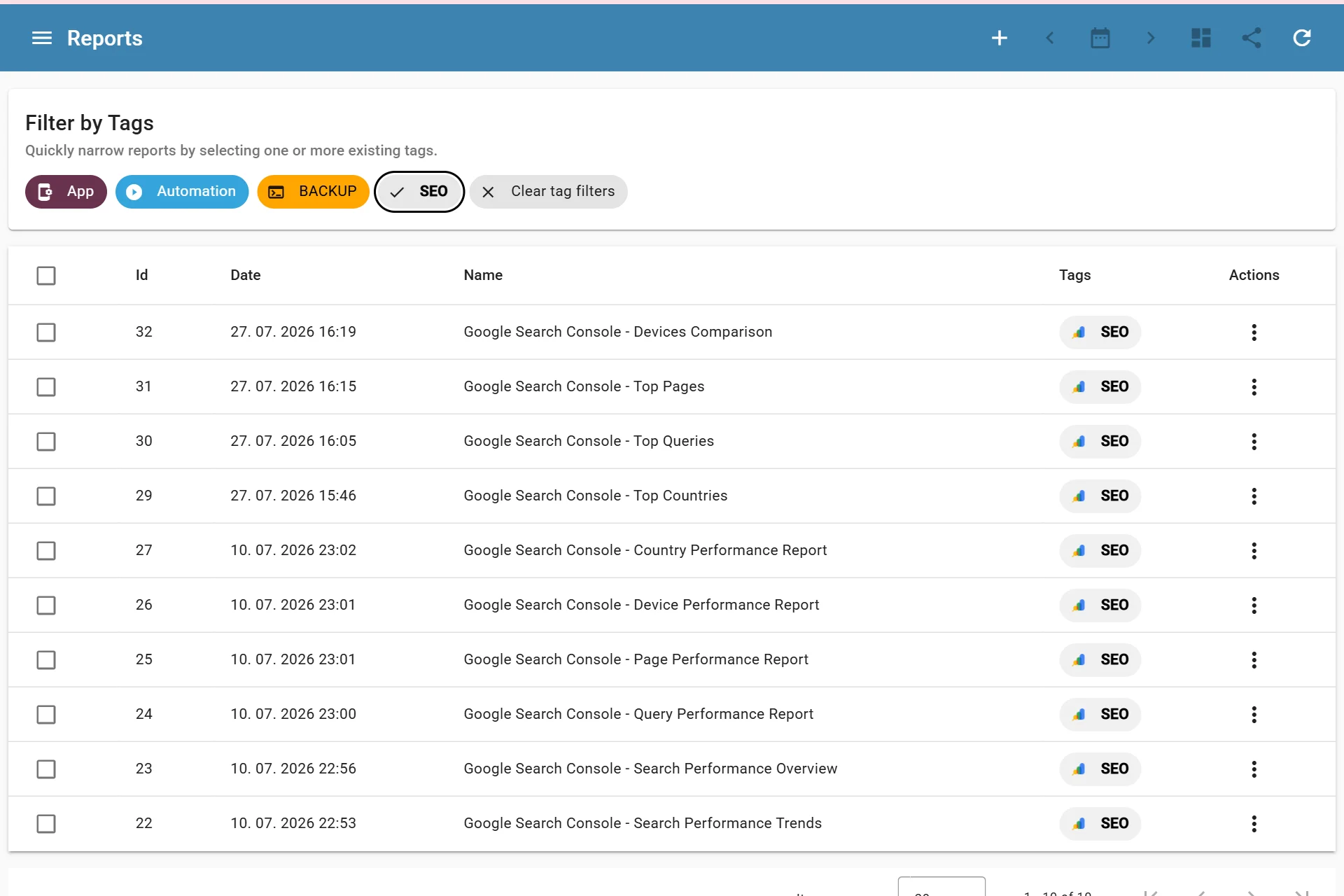
- Install the solution. AutoROICalc creates the scheduled import, reports, and dashboard configured for that solution.
- Open the new dashboard and review the reports. Check the property, dates, record source, metric labels, and any email settings so they match your reporting audience.
If you select a historical import, allow that import to finish before judging the initial charts. Check the imported records and import history if a report appears empty.
Build a useful weekly review
Start with four questions: Did clicks change? Did impressions change? Which queries or pages drove the change? Did the change differ by country or device? The dashboard should make those questions quick to answer, while the detailed reports let you inspect the underlying breakdowns.
For a client or team update, add a short written interpretation alongside the numbers. A rise in impressions with flat clicks, for example, is a prompt to inspect query and page detail; it is not a conclusion by itself. Record the action you plan to take, then compare the next reporting period.
Keep the automation reliable
After setup, confirm that the scheduled import runs and that the newest records appear in the reports. Review the connection if provider authorization expires. When you change the property, imported fields, or report audience, revisit the schedule and email configuration. Automation removes repeated preparation, but the report still benefits from a human review before it is shared.
Ready to set it up? Open One-Click Solutions. For the available settings, see the One-Click Solutions guide and Google Search Console integration guide.